> ## Documentation Index
> Fetch the complete documentation index at: https://docs.anodyne-productions.com/llms.txt
> Use this file to discover all available pages before exploring further.
# User dashboard
> Learn more about how registered users can have quick access to their characters, site preferences, and other features
Each registered user, including site administrators, will have access to a dashboard when logged into Nova. The dashboard can be accessed by clicking on the Dashboard icon in the upper-most Nova menu, next to the Private Messages and Writing Control panel icons.
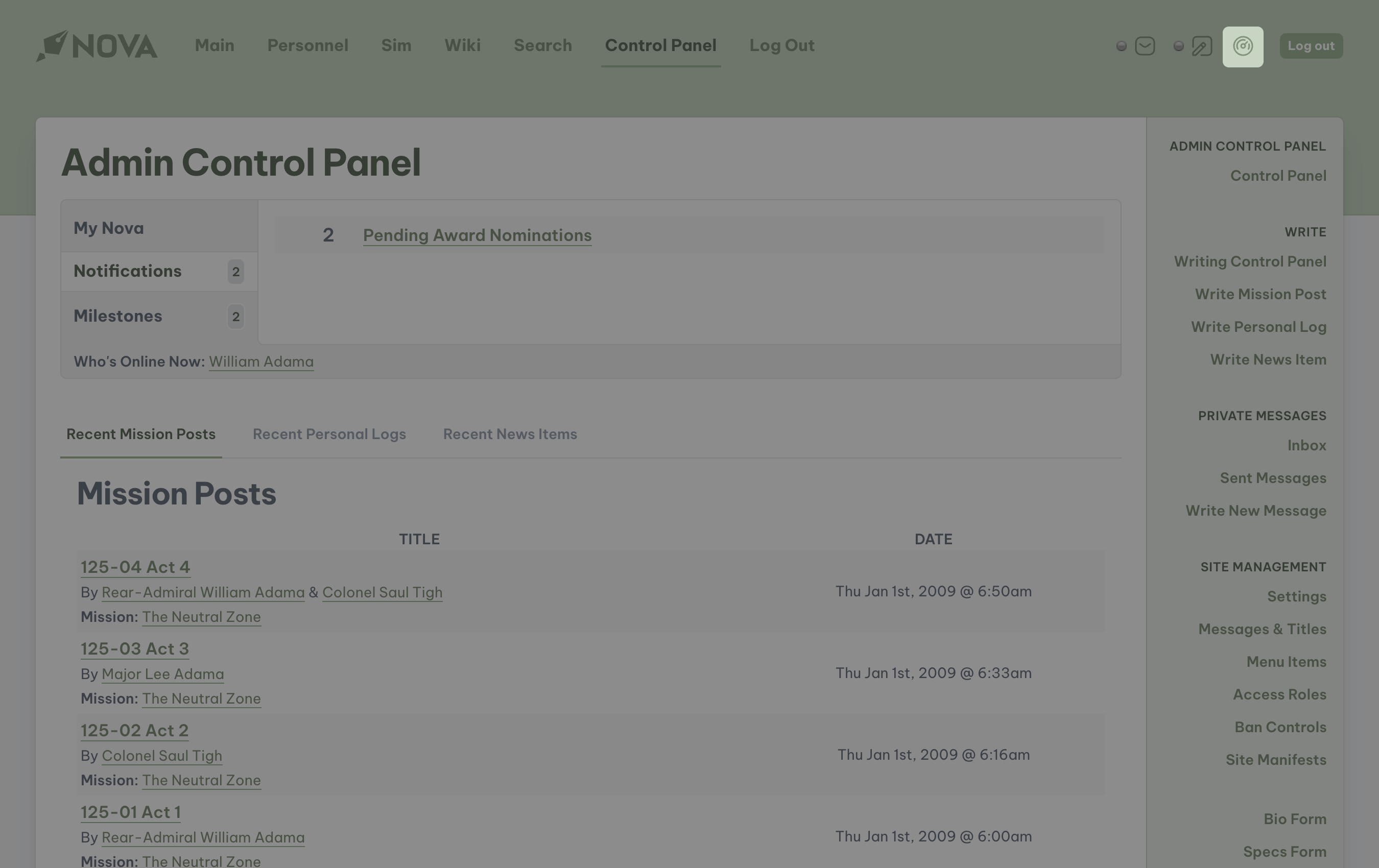 A typical dashboard will appear like this:
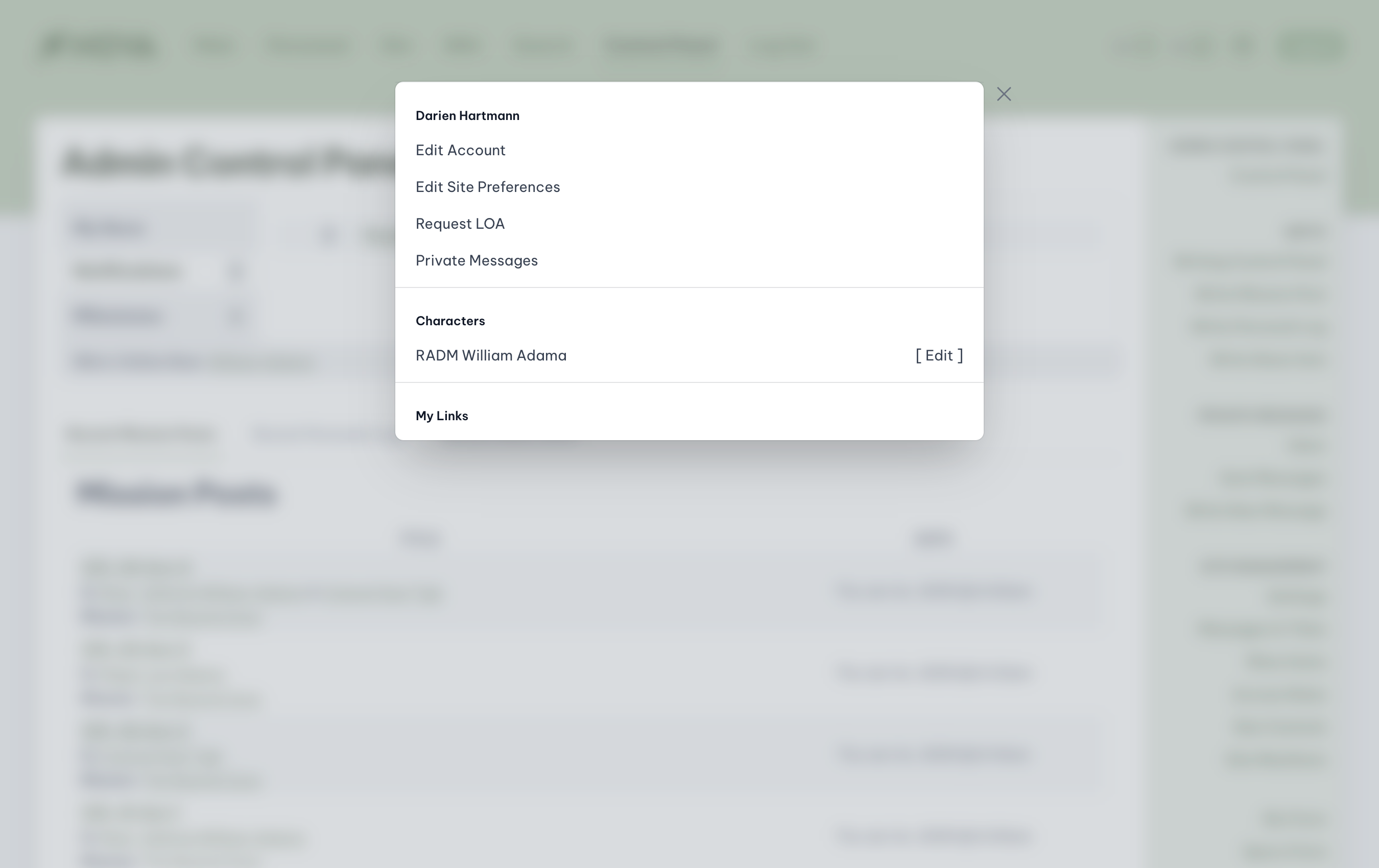 Through the dashboard, each user will have access to:
* Their **User Account**
* Their **Site Preferences**
* The ability to request a Leave of Absence, or **LOA**
* Access to **Private Messages**
* Access to each of their **Character Bios**
* Up to 5 custom **Links** to areas of the site their Access Role will allow.
## Editing your user account
To access your user account, access the Dashboard and click on the **Edit Account** link.
You will be taken directly to your user account where you can update your display name, email address, change your password and security question, as well as set some additional personal information, including a personal bio. You can also determine what Nova can send to you via email.
When all changes are complete, select **Update.**
## Editing site preferences
To access your site preferences, access the Dashboard and click on the **Edit Site Preferences** link.
The available tabs will include:
* *My Skins*
* *My Ranks*
* *My Links*
### Selecting your favorite skin
You will be able to select what skins you will be able to see throughout the site when you are logged in. All users will be restricted to the skins that are installed and activated by site administrators. You can customize these preferences under the **My Skins** tab.
The sections of the site that the user can customize the view of are:
* *Main Site*
* *Admin Site*
* *Wiki*
When all changes are complete, select **Update.** To see the new skin in use, navigate to a different page and the skin will be applied automatically.
### Selecting your preferred rank set
You will also be able to select your preferred rank set images by selecting the **My Ranks** tab. All users options will be limited to the rank sets that were installed and activated by the site administrators.
When all changes are complete, select **Update.** To see the preferred rank set, navigate to the personnel page to see the ranks in use.
### Determining custom links
If there are portions of the website you wish to have quick access to, such as the Enterprise's deck listing, you can set up a link to that section under the **My Links** tab. Once saved, this quick link will be available on your dashboard.
Under your link options, click on the dropdown for *My Link #2* and locate **Deck Listing**.
When all changes are complete, select **Update.** To see the new link in your dashboard, navigate to a new page and access the dashboard. You will see your custom links at the bottom of the dashboard panel.
## Requesting a leave of absence (LOA)
To request a leave of absence from the game, access the Dashboard and click on the **Request LOA** link.
The following options are available on the request form:
* *Status*: select from Active, Leave of Absence, or Extended Leave of Absence.
* *Duration*: enter how long you expect to be on LOA.
* *Reason:* inform the game's management staff as to why your leave is needed.
When all information is entered, select **Submit**. Your request will be emailed to the game's management, and your status will be automatically updated throughout the system.
After your leave has ended, please return to this section and change your status to Active by submitting a new form. The management staff will again be emailed and your status automatically changed.
## Private messages
To access your private messages, access the Dashboard and click on the **Private Messages** link.
You will be automatically directed to the Messaging Center where you can read and send private messages, including messages that you send to other players. To write a new message, click on **Write New Message**. Select the primary character of the user you wish to send a message to, and then enter the subject and the message you wish to send.
Once all information is entered, select **Submit**. The message will be instantly sent to that user, and if that user has email notifications enabled, they will receive an email.
To view all messages that you sent to other players, select **Sent Messages**.
## Editing characters
The Dashboard enables all players to have easy access to your **character bio(s)**. To read any of these bios, or to edit them, access the dashboard and select the appropriate character's name.
## Deleting your account
The actions taken in this section cannot be reversed or recovered. Please use caution when proceeding.
When you decide that you wish to leave a game, you have the option of deleting your user account. When you choose to do this, the following information will be instantly deleted from Nova:
* Your **User Account** including all personal information such as your name, email address, and relevant details.
* All your **Personal Preferences** including custom links, and visual preferences.
* Access to any **Private Messages** sent or received by you.
* Attribution of any **Awards**.
The following **WILL NOT** be deleted from Nova:
* Your **character(s)** and related bios.
* Any **contributions** to saved and published posts, logs, wiki articles and news items.
To delete your account, access the Dashboard and click on the **Edit Account** link. Select the *Delete Your Account* option.
Through the dashboard, each user will have access to:
* Their **User Account**
* Their **Site Preferences**
* The ability to request a Leave of Absence, or **LOA**
* Access to **Private Messages**
* Access to each of their **Character Bios**
* Up to 5 custom **Links** to areas of the site their Access Role will allow.
## Editing your user account
To access your user account, access the Dashboard and click on the **Edit Account** link.
You will be taken directly to your user account where you can update your display name, email address, change your password and security question, as well as set some additional personal information, including a personal bio. You can also determine what Nova can send to you via email.
When all changes are complete, select **Update.**
## Editing site preferences
To access your site preferences, access the Dashboard and click on the **Edit Site Preferences** link.
The available tabs will include:
* *My Skins*
* *My Ranks*
* *My Links*
### Selecting your favorite skin
You will be able to select what skins you will be able to see throughout the site when you are logged in. All users will be restricted to the skins that are installed and activated by site administrators. You can customize these preferences under the **My Skins** tab.
The sections of the site that the user can customize the view of are:
* *Main Site*
* *Admin Site*
* *Wiki*
When all changes are complete, select **Update.** To see the new skin in use, navigate to a different page and the skin will be applied automatically.
### Selecting your preferred rank set
You will also be able to select your preferred rank set images by selecting the **My Ranks** tab. All users options will be limited to the rank sets that were installed and activated by the site administrators.
When all changes are complete, select **Update.** To see the preferred rank set, navigate to the personnel page to see the ranks in use.
### Determining custom links
If there are portions of the website you wish to have quick access to, such as the Enterprise's deck listing, you can set up a link to that section under the **My Links** tab. Once saved, this quick link will be available on your dashboard.
Under your link options, click on the dropdown for *My Link #2* and locate **Deck Listing**.
When all changes are complete, select **Update.** To see the new link in your dashboard, navigate to a new page and access the dashboard. You will see your custom links at the bottom of the dashboard panel.
## Requesting a leave of absence (LOA)
To request a leave of absence from the game, access the Dashboard and click on the **Request LOA** link.
The following options are available on the request form:
* *Status*: select from Active, Leave of Absence, or Extended Leave of Absence.
* *Duration*: enter how long you expect to be on LOA.
* *Reason:* inform the game's management staff as to why your leave is needed.
When all information is entered, select **Submit**. Your request will be emailed to the game's management, and your status will be automatically updated throughout the system.
After your leave has ended, please return to this section and change your status to Active by submitting a new form. The management staff will again be emailed and your status automatically changed.
## Private messages
To access your private messages, access the Dashboard and click on the **Private Messages** link.
You will be automatically directed to the Messaging Center where you can read and send private messages, including messages that you send to other players. To write a new message, click on **Write New Message**. Select the primary character of the user you wish to send a message to, and then enter the subject and the message you wish to send.
Once all information is entered, select **Submit**. The message will be instantly sent to that user, and if that user has email notifications enabled, they will receive an email.
To view all messages that you sent to other players, select **Sent Messages**.
## Editing characters
The Dashboard enables all players to have easy access to your **character bio(s)**. To read any of these bios, or to edit them, access the dashboard and select the appropriate character's name.
## Deleting your account
The actions taken in this section cannot be reversed or recovered. Please use caution when proceeding.
When you decide that you wish to leave a game, you have the option of deleting your user account. When you choose to do this, the following information will be instantly deleted from Nova:
* Your **User Account** including all personal information such as your name, email address, and relevant details.
* All your **Personal Preferences** including custom links, and visual preferences.
* Access to any **Private Messages** sent or received by you.
* Attribution of any **Awards**.
The following **WILL NOT** be deleted from Nova:
* Your **character(s)** and related bios.
* Any **contributions** to saved and published posts, logs, wiki articles and news items.
To delete your account, access the Dashboard and click on the **Edit Account** link. Select the *Delete Your Account* option.
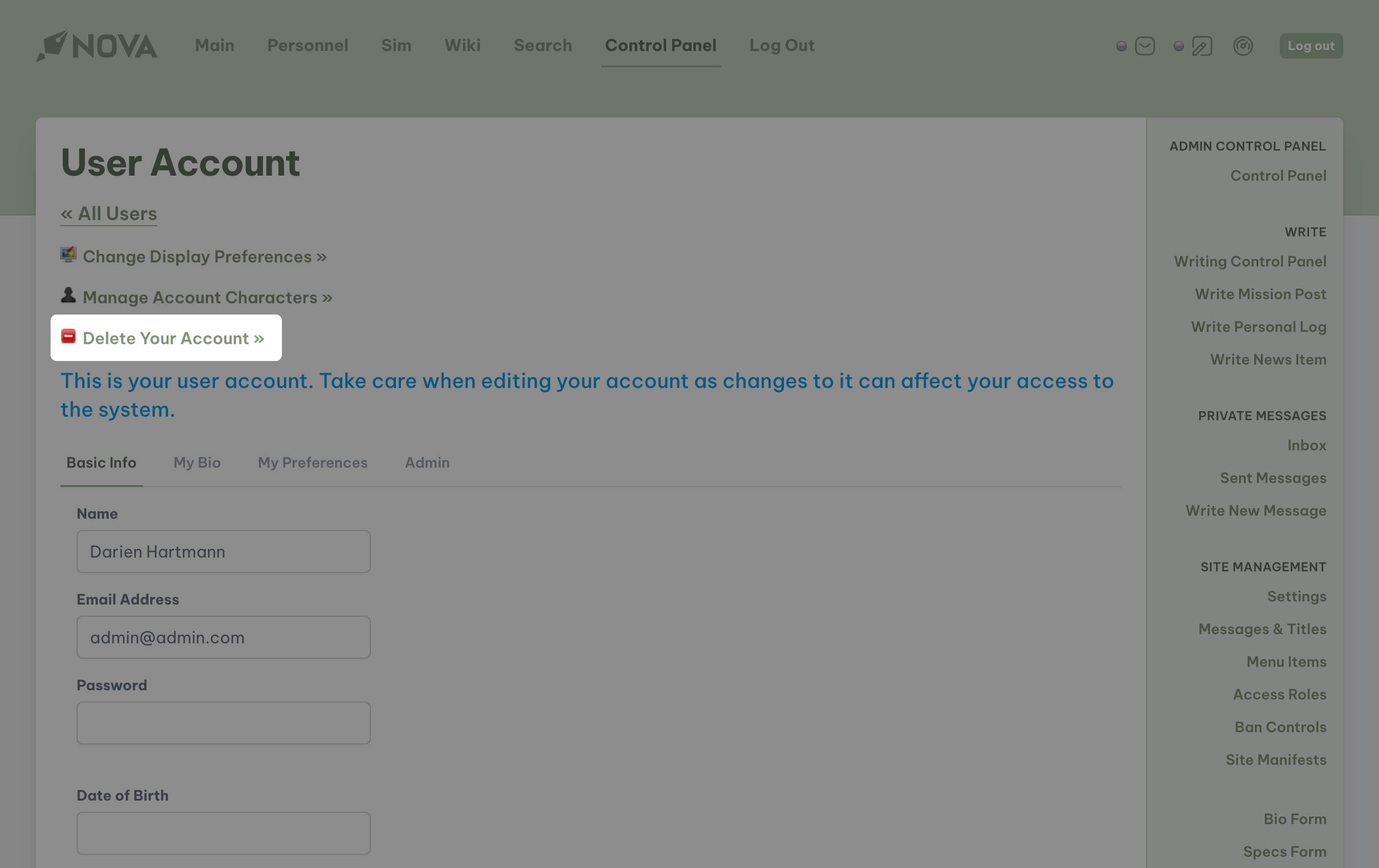 You will be asked by Nova if you truly do wish to delete your account. Once you are certain you wish to proceed, click on the **Delete My Account** button. Nova will instantly remove all your personal information from the system.
**Users with system administrator privileges cannot delete their accounts.** If you are a system administrator and you wish to delete your account, another user with system administrator access must first remove your system administrator access.
If you are the only system administrator, you will have to give another player system administrator access, and have them remove system administrator access from your account.
Once the access has been removed, you will be able to delete your account.
You will be asked by Nova if you truly do wish to delete your account. Once you are certain you wish to proceed, click on the **Delete My Account** button. Nova will instantly remove all your personal information from the system.
**Users with system administrator privileges cannot delete their accounts.** If you are a system administrator and you wish to delete your account, another user with system administrator access must first remove your system administrator access.
If you are the only system administrator, you will have to give another player system administrator access, and have them remove system administrator access from your account.
Once the access has been removed, you will be able to delete your account.